
Saving Content
The extension gives you three ways to save web content: a floating button, the right-click context menu, and full-page capture.
Save a text selection
- Highlight any text on a webpage.
- A floating Save to Obris button appears near your selection.
- Click Save to Obris to save to your currently selected topic.
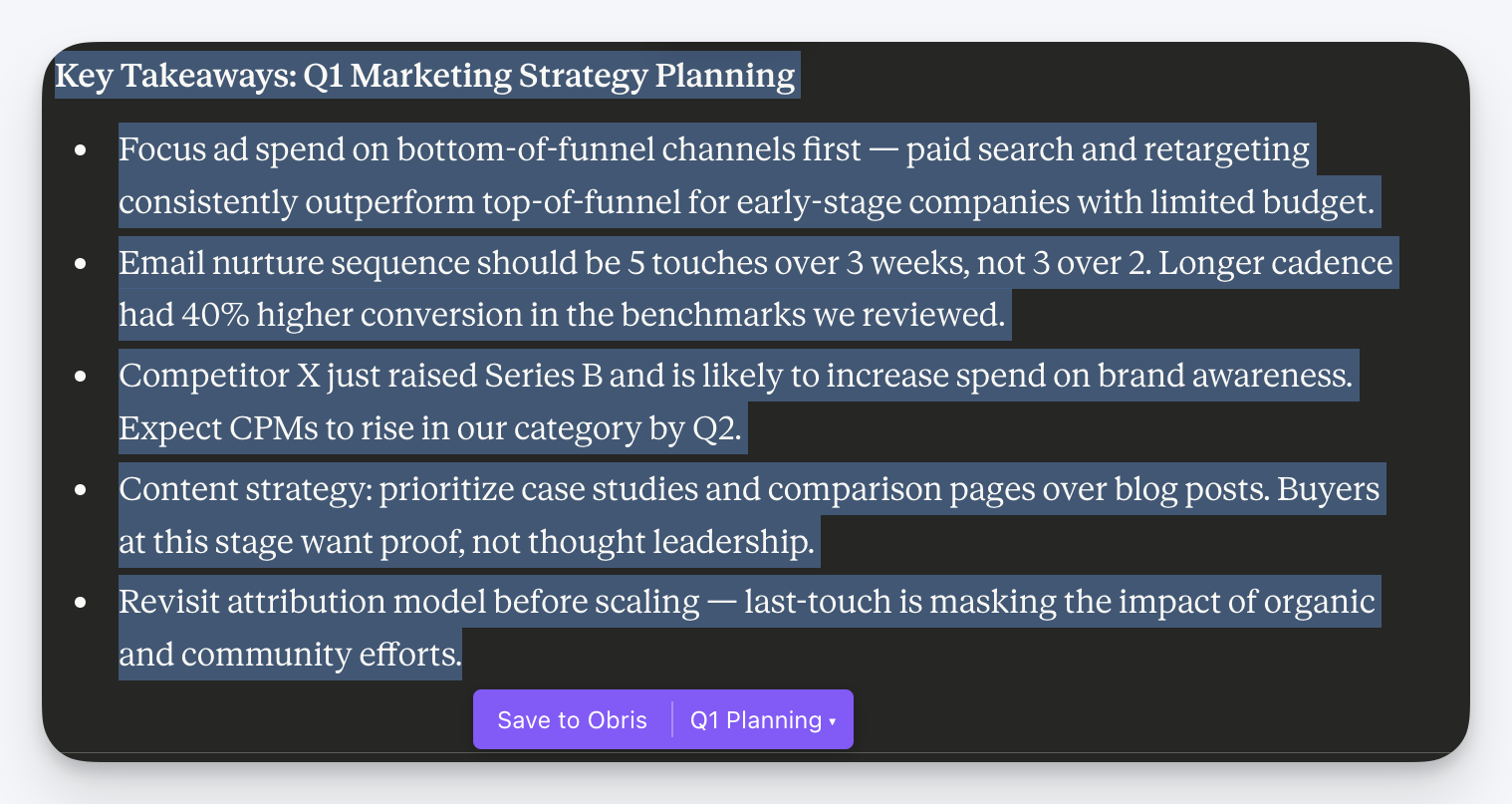
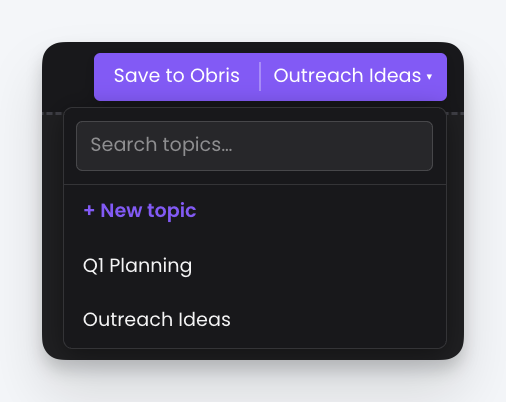
The button also has a topic selector on the right side. Click it to switch topics or create a new one before saving.
A confirmation toast appears when the save completes. Click it to jump straight to your saved content in Obris.
Save via right-click menu
- Select text on any webpage (or don't select anything to save the full page).
- Right-click to open the context menu.
- Choose Save Selection to Obris when text is highlighted, or Save Page to Obris when no text is selected.
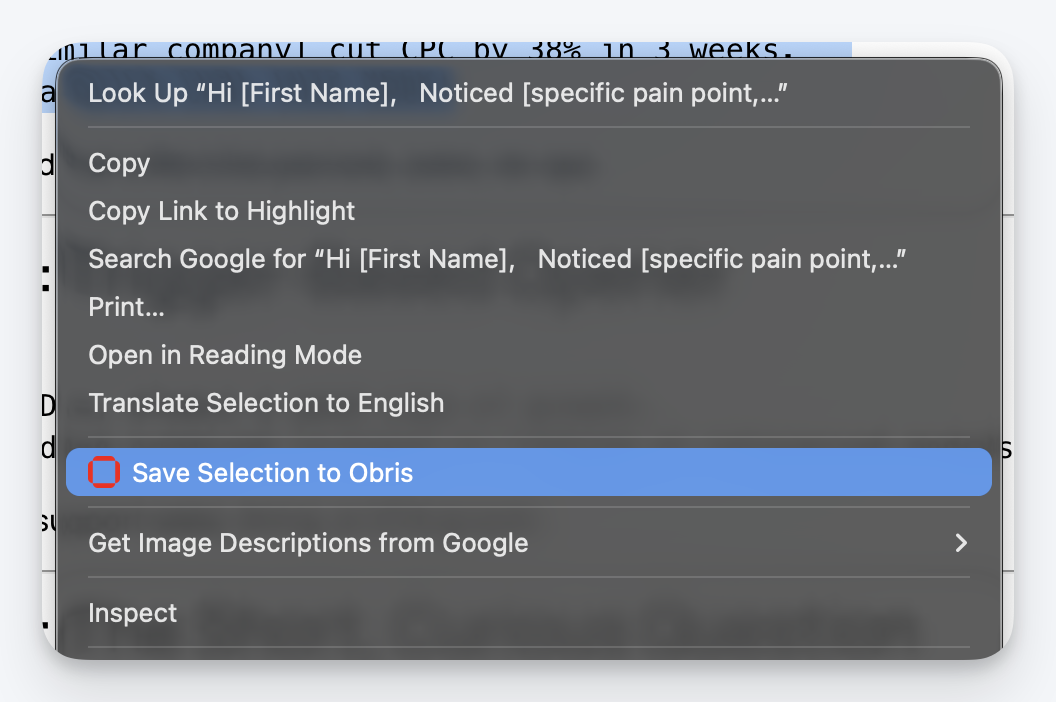
Save a full page
Right-click anywhere on a page (without selecting text) and choose Save Page to Obris. The extension captures the full page content along with the page URL and title.
Topics
Every saved item goes into a topic. The extension remembers your last-used topic for convenience.
- Switch topics: Click the topic selector on the floating button or in the topic picker modal.
- Create a topic: Type a name in the "New topic" field inside any topic selector. The topic is created instantly and selected.
- Single topic auto-select: If your account has only one topic, it's selected automatically.
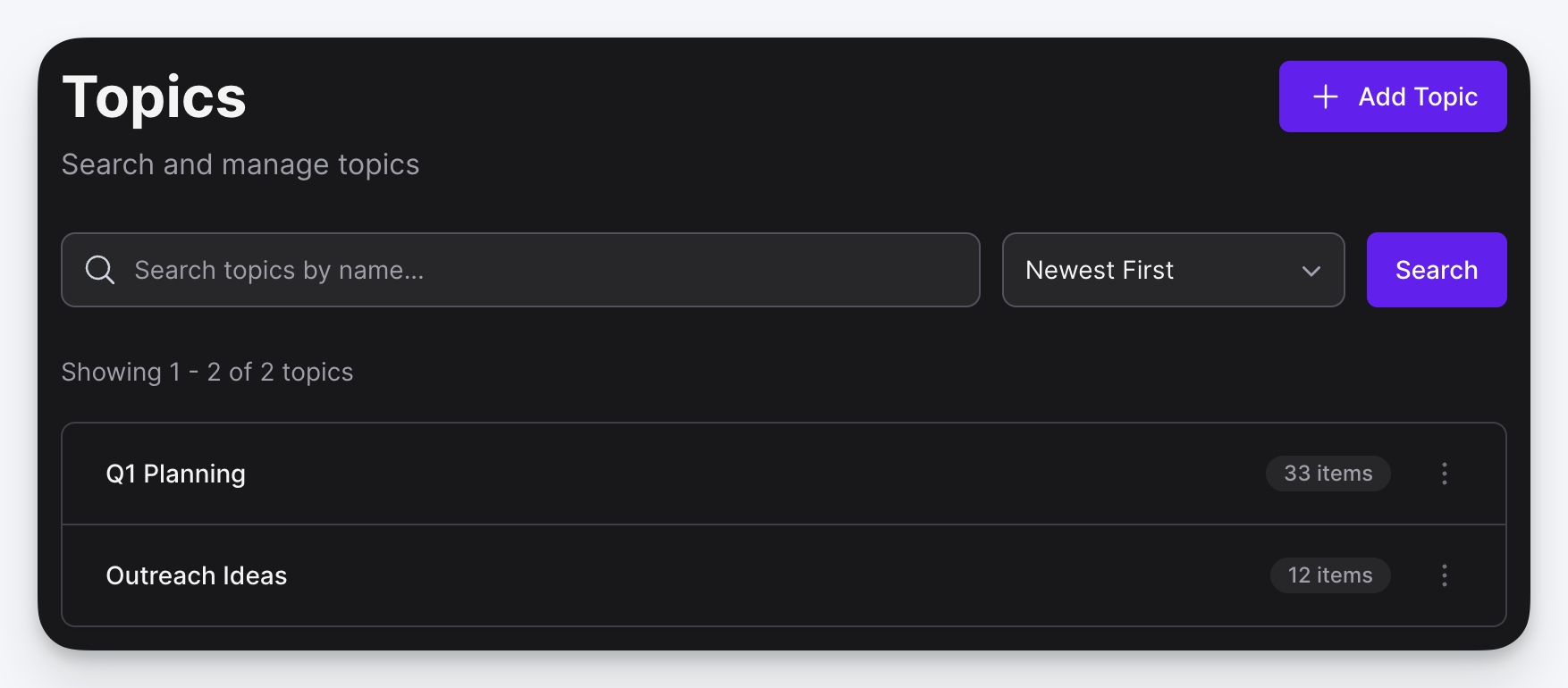
Topics you create from the extension appear immediately in the Obris app and are accessible through the MCP server.
What gets saved
When you save content, the extension sends:
- Selected text or full page HTML (depending on the save method)
- Page URL: the source URL of the page
- Page title: the document title
All saved content is associated with your Obris account and the topic you selected.