
Troubleshooting
Solutions to common issues when using the Obris Chrome extension.
Login issues
Signed up with Google or GitHub?
The Chrome extension requires an email and password to log in. If you created your account using Google or GitHub, you will need to set a password first. Go to Account settings and use the "Set password" form, then log into the extension with your email and new password.
"Login failed" error
Double-check your email and password. If you recently signed up, make sure you are using the same credentials you registered with at app.obris.ai.
Session expires frequently
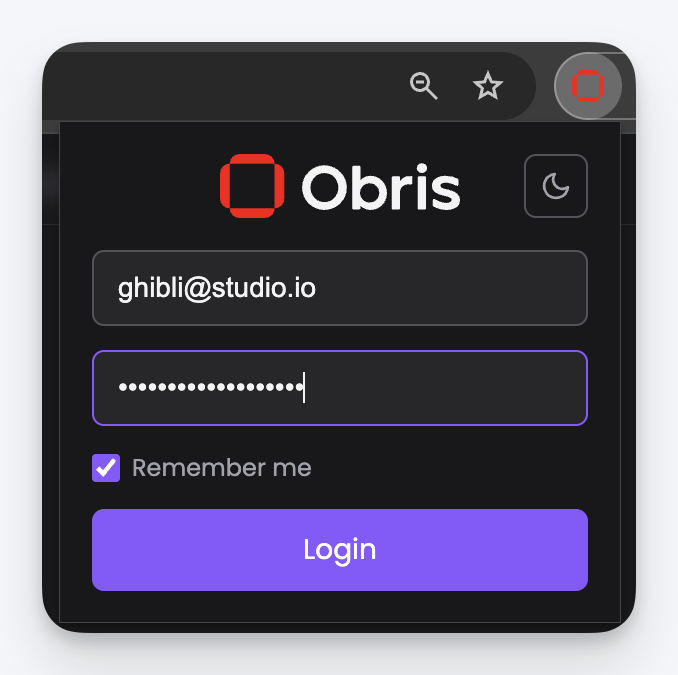
Check the Remember me box when logging in. Without it, your session is cleared when the browser closes.
Extension shows logged out after browser restart
This happens when "Remember me" was not checked during login. Log in again and enable "Remember me" to persist your session.
Saving issues
Floating button does not appear
- Make sure you are logged in. Click the extension icon to check.
- The button only appears when you select text. Try selecting text on a different page.
- Some websites block extensions from injecting UI. Try a different site.
"Save" button does not respond
The extension may have lost connection to the background service worker. Try refreshing the page and selecting text again.
No topics available
You need at least one topic to save content. Create a topic directly from the topic selector in the extension, or from the Obris app.
Saved content not appearing in Obris
Refresh the Obris app. If the content still does not appear, check that you saved to the correct topic.
General issues
Extension not working after Chrome update
Chrome updates can occasionally disable extensions. Go to chrome://extensions/, find Obris, and make sure it is enabled.
Context menu items missing
Restart Chrome. If the context menu items still do not appear, disable and re-enable the extension from chrome://extensions/.
If none of the above solutions work, try removing and reinstalling the extension from the Chrome Web Store.
Contact support
If you are still experiencing issues, reach out to us at support@obris.ai.